Explore one idea at a time: a flexible stem, a change of color, a little interaction. Every study uses features working in the prototype, with source you can open in Studio.
Milo / character studyEvir / Canvas preview
Idle
A little hello is waking up…
Curves
Rigging
Interaction
A little hello.
Curved shapes, a bone chain, weighted path controls and a two-state interaction. Say hello, then inspect the editable character in Studio.
What to inspect in Studio
Select shoulder in Animate and scrub Hello; inspect wave arm weights in Design.
A flexible stem bends through a two-bone chain. Different anchor and handle weights keep the lower stem rooted while the upper shape follows the breeze.
What to inspect in Studio
Select flexible stem in Design to inspect its weights; scrub Breeze and compare root joint with tip joint.
Enable the interface and raise the level to 50 to reach Ready. Celebrate invokes a click listener and a transient trigger. Reset restores the initial state and inputs.
What to inspect in Studio
Open Interact to inspect Flow: boolean enabled, number level, trigger celebrate and the celebration pad listener.
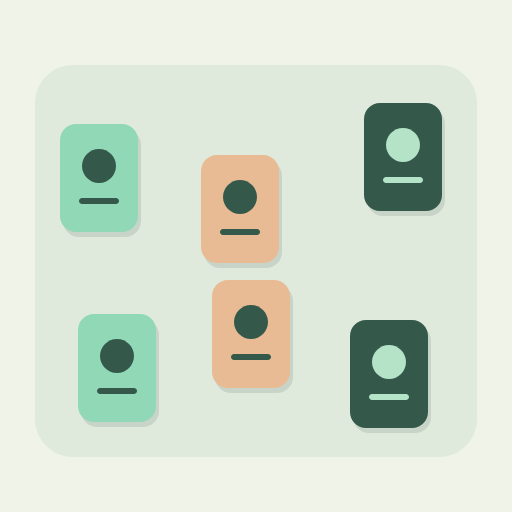
Three offset cards invite a small composition exercise. Select card 1, card 2 and card 3 in Design, then Align left in Properties. Turn on Snap to alignment in Canvas view to explore edges and centers.
What to inspect in Studio
Use Multiple in Layers to select the three card groups, then Align left in Properties. Undo restores the offset arrangement. Guides are temporary editor overlays, separate from the exported Glow animation.
Sampled organic outlines become compact, editable cubic paths through the same fitting code as Studio Freehand. A gentle Drift loop gives the shape a little life.
What to inspect in Studio
Open Wisp in Studio, select drawn body and Edit points. Try Freehand (B) to add a shape; release, adjust Drawing options and Finish path. These outlines are generated sample studies, not a recorded human drawing. Solid fills only; no pressure-sensitive brush strokes.
A peach sunrise and layered mint hills explore static color stops on curved shapes. A transformed sun carries its own radial paint through a gentle Rise loop.
What to inspect in Studio
Select sky, sun or near hill in Design and choose Edit fill. Change the type, endpoints, stop colors or opacity, then Apply. Scrub Rise to see local paint follow the sun. Dawn uses static stops; Canopy demonstrates animated and skinned gradients.
An animated gradient passes behind a clipping mask. Change the mask or key the paint in Studio.
What to inspect in Studio
Select window in Design and choose Clipping & feather to change its mask. Select light in Animate and scrub Glow to inspect gradient endpoints and stop colors; paint-wind drives the skinned path.
Outer feather softens a mint square. Canvas uses an approximate blur; official Rive WebGL rendering differs.
What to inspect in Studio
Select glow in Design and choose Clipping & feather. Change outer feather strength, Apply, then Undo to compare. This static study uses approximate Canvas blur.
An independent moving target drives a two-bone chain. Change the bend direction or constraint strength.
What to inspect in Studio
Select elbow in Design and choose Inverse kinematics. Change the independent target, bend direction or strength. Scrub Reach in Animate to see the target drive the chain.
An original two-color texture deforms with a skinned triangle mesh. Inspect vertex positions and UVs.
What to inspect in Studio
Select cloth in Design and choose Edit mesh. Pick a vertex index to change its position or UV; inspect the wind bone binding. Scrub Flutter to see the textured mesh move.
An embedded OFL-licensed Noto Sans Latin font keeps this caption editable. Text size can be keyed.
What to inspect in Studio
Select caption in Design and choose Edit text to change the wording or size; Edit fill changes color. In Animate, scrub Type and inspect the fontSize track. Create → Assets adds your own text or image.
A number input blends two poses after a timed transition. Explore inputs and transition duration in Interact.
What to inspect in Studio
Open Interact, select Motion and choose Blending & timing. Inspect the 200 ms exit time, 400 ms duration and number-driven blend. Activate the blend and play motion before moving Position in the public preview.
A small collection of cards invites you to find a rhythm. Equalize their gaps and change the stacking order while keeping their geometry and source editable.
What to inspect in Studio
Select card 1, card 2 and card 3 using Multiple, then choose Distribute horizontal in Properties. Drag visible layer rows to reorder or nest; Organize offers above/below reference placement for touch and keyboard. Undo restores each operation.
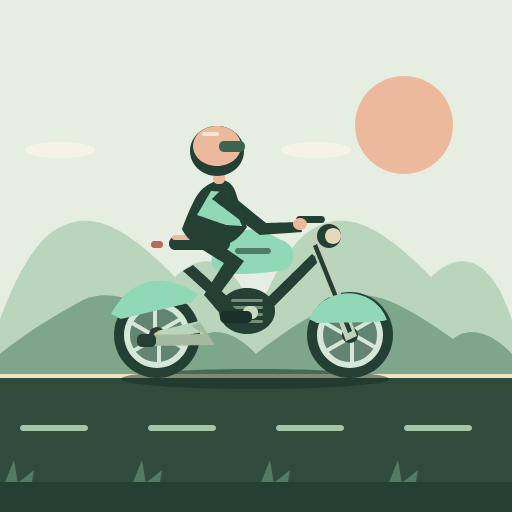
Take a little Sunday ride. Throttle accelerates, braking slows the wheels and road, and occasional bumps lift and settle the chassis. Background, midground and foreground move on independent timelines; the turn signal blinks three times, then stops.
What to inspect in Studio
Select Wheels in Animate, then Playback settings to inspect continuous rotation. Preview layers combines Asphalt, Distant hills, Passing hills, Roadside and Suspension bump. Ride is a combined native showcase timeline. The public controls use the downloadable Evir host controller; they are not embedded game logic inside the .riv export.
This scene is authored through the shared command package. A continuous turning pointer becomes a small lesson in speed and direction. Studio Live tools can add it to your project and expose a typed speed slider.
What to inspect in Studio
Choose Project menu → Live tools, Grant local access, then Add compass lesson. Allow preview motion and Play preview; vary Pointer speed. The gallery plays the authored default loop. Session controls stay separate from source and .riv exports; the local MCP process is a separate in-memory host.
These previews run Evir’s Canvas2D evaluator. Their exports are checked with the official Rive runtimes for selected poses and interactions; they are not mobile performance benchmarks. The supplied third-party Rive scenes remain research inputs.
A GROWING COLLECTION
Each new feature. A new little study.
We’ll keep adding examples as supported features grow. Share an idea or contribute a study with editable source.